Posts

Showing posts with the label Sequencing

Sequencing Google Chrome using App-V 5.1
Image
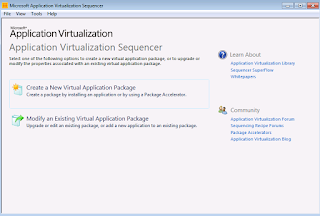
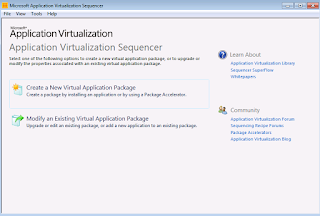
1)  Launch the Microsoft Application Virtualization Sequencer from Start->Programs 2)  Select the "Standard application" type in the Type of Application to be Virtualized 3)  Select "Perform a custom installation" in the select installer screen Provide the virtual application name as Google Chrome and click next. 4)  Before the application is installed, make sure that the below registy entries are placed to disable the updates. [HKEY_LOCAL_MACHINE\SOFTWARE\Policies\Google\Update] "UpdateDefault=dword:00000000 "AutoUpdateCheckPeriodMinutes"=dword:0000000 5)  Start the installation during monitoring phase.Install the package using source "GoogleChromeStandaloneEnterprise.msi" After installation, perform the following steps. - Delete the services : Google Update service (gupdate, gupdatem) using the below command in CMD ; SC DELETE gupdate SC DELETE gupdatem - Remove the shortcut from desktop - Remove the folder Update from Program Files (x8...

Sequence WinZip 19 - App-V 5.1

Image
Download the source and extract the windows installer (.msi) file from %temp% location. Start the sequencing step using App-V 5.1 Sequencer. 1. Select create a new virtual package. 2. Select create package. 3. Select standard package. 4. Select custom installation. 5. Type the name of the virtual package as WinZip 19.0. Click Next and run the installation of the msi file in the CMD as shown below.   If you want to customize further using the PUBLIC Properties during installation with the msi, have a look in the below links. http://kb.winzip.com/kb/entry/11 http://kb.winzip.com/kb/entry/229/ Remove the desktop shortcut. 6. Click I am finished Installing once installation is completed. 7. In the configure software phase, launch the main shortcut and enter the registration details if you already have. Once the application opens, close it. Do this for at least 2 - 3 times. Launch again and keep the shortcut open and run the following command in CMD Prompt.   reg add "HKCU\Software...

Sequence Visio Viewer 2010 - App-V 5.1

Image
You can download the source from the below link. https://www.microsoft.com/en-in/download/details.aspx?id=21701 Before to sequencing the Visio Viewer 2010 application, take some sample drawings created using Visio 2010 that are supported by Visio viewer (files with a .vsd, .vss, .vst, .vdx, .vsx, or .vtx extensions) and place it in desktop or some temp location. Now start the sequencing steps using App-V sequencer 5.1. 1. Select create a new virtual package. 2. Select create package. 3. Select standard package. 4. Select custom installation and enter the virtual package name. 5. Install the Visio viewer 2010 application. After Installation, click on any one of the extension(Earlier kept in desktop) which will open up Internet Explorer and show the diagram. 6. Click I am finished Installing and continue to modify using package editor. 7. when you click on Virtual registry tab in package editor you can see the FTA extensions being captured in the registries. 8. Remove ...

Sequencing VLC Media Player using App-V 5.1

Image
1)  Launch the Microsoft Application Virtualization Sequencer from Start-> All Programs 2)  Select the create package (default) option. 3) Select the "Standard application" type in the type of application to be sequenced.  4)  Select "Perform a custom installation" in the select installer screen and click next. 5) Provide the virtual application name as VLC Media Player and click next. 6) Install the VLC Media player application now. Uncheck Desktop shortcut option. Uncheck Run Vlc Media Player option and click finish. 7) Once Installation is completed, Select "I am finished Installing" and click next.                                     8) In the configure Phase, launch the required shortcuts and perform custom changes if needed and remove unwanted shortcuts. Here we have removed all unwanted shortcuts other than the main VLC Media Player shortcut. Launched it and unch...